• Employees configuration
• Booking configuration
• Booking using
• Tickets configuration
• News configuration
• Mail groups configuration
• Main menu configuration
• Company configuration


|
|
Booking Using
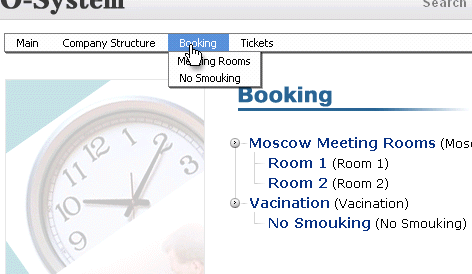
Fig. 1
Book any resouce (meteeng room or anithing else) or event you can by clicking "Booking" in main top menu.
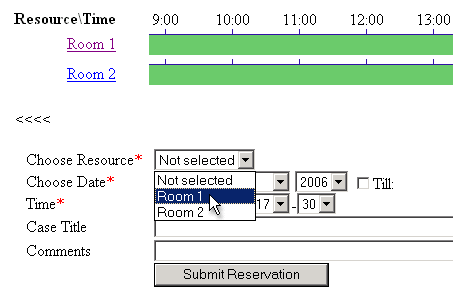
Fig. 2
If you want to book Meeting room, you need select meeting room, choose date (by default date is today) and time. Also you can fill "Case Title" and "Comments" field
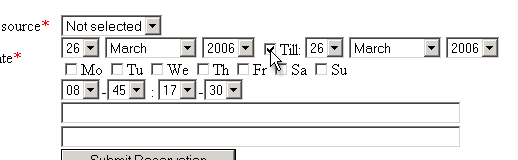
Fig. 3
If you want to book this meeting room for some days, you can click to "Till" checkbox and select end date and choose week days when resource will be booked except not checked week day.
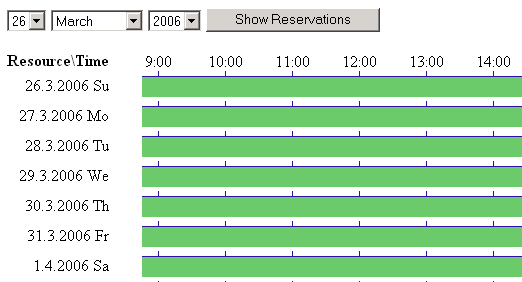
Fig. 4
Also you can see availabless of meeting room for next 10 days by clicking on resource title.
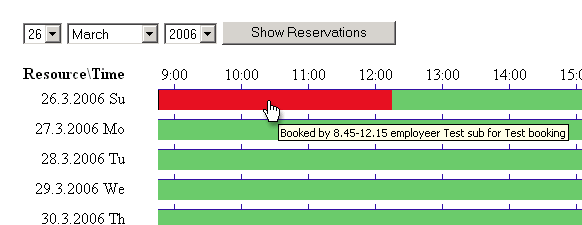
Fig. 5
After you succsessfule book resource, all other employees will see red line on time-line for this meeting room. If you placed mouse point over booked zone, you can see booking parameters.
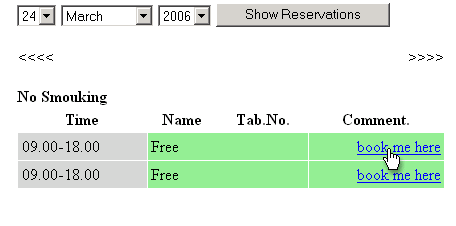
Fig. 6
Booking event is some simple. You can simple click on "Book me here" and booking will be saved.
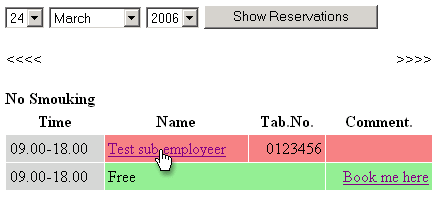
Fig. 7
After this all other employees will see your booking.
|